How to measure laser kerf and offset parts so they fit
Every cutting process removes a strip of material, and that strip has a width: the kerf. A laser's kerf is a fraction of a millimetre, a router's is the whole bit diameter, and either way the part comes out smaller than drawn and the holes bigger. For a coaster this doesn't matter. For a finger joint, a press-fit inlay or a part that slides into a slot, it decides whether the parts hold, rattle or crack. The sections below start with where the kerf comes from and end with the arithmetic of a press fit.
What sets the width of the cut
A laser beam is focused to a spot, typically somewhere around 0.1 to 0.2 mm across on a hobby CO2 machine with a standard lens, and the cut ends up wider than the spot because the heat melts and burns material at the sides as well. The cut also isn't parallel-sided. The beam converges to its focus and diverges again below it, so in thick stock the kerf is a V or an hourglass: wider at the top in 6 mm acrylic, often narrower in the middle. Slower speed, more power, extra passes and a focus point that has drifted off the surface all make it wider.
The figures below are typical starting ranges from general shop experience. Your own machine will differ. Use them to judge whether your own measurement is plausible, then use your own number.
| Process and material | Typical kerf | Notes |
|---|---|---|
| CO2 laser, 3 mm plywood or MDF | 0.15–0.25 mm | Wider with slow speeds and char; glue lines in plywood vary |
| CO2 laser, 3 mm cast acrylic | 0.1–0.2 mm | Clean, consistent edges; does not compress in a joint |
| CO2 laser, 6 mm stock | 0.2–0.35 mm | Noticeably tapered; measure top and bottom faces |
| Diode laser, 3 mm plywood | 0.1–0.25 mm | Several passes widen the top of the cut |
| Fibre laser, thin sheet metal | Often under 0.1 mm | Depends heavily on the machine and gas |
| CNC router | Bit diameter, plus a little | A 3.175 mm bit commonly cuts 3.2–3.3 mm with runout |
| Waterjet / plasma | About 0.8–1.2 mm / 1.5 mm and up | Plasma kerf varies a lot with amperage and nozzle |
On a router, CAM software applies the bit radius itself as a tool offset, so you rarely offset the drawing for kerf. The fit arithmetic below still applies to the clearances you choose.
Measure it with a ten-piece gauge
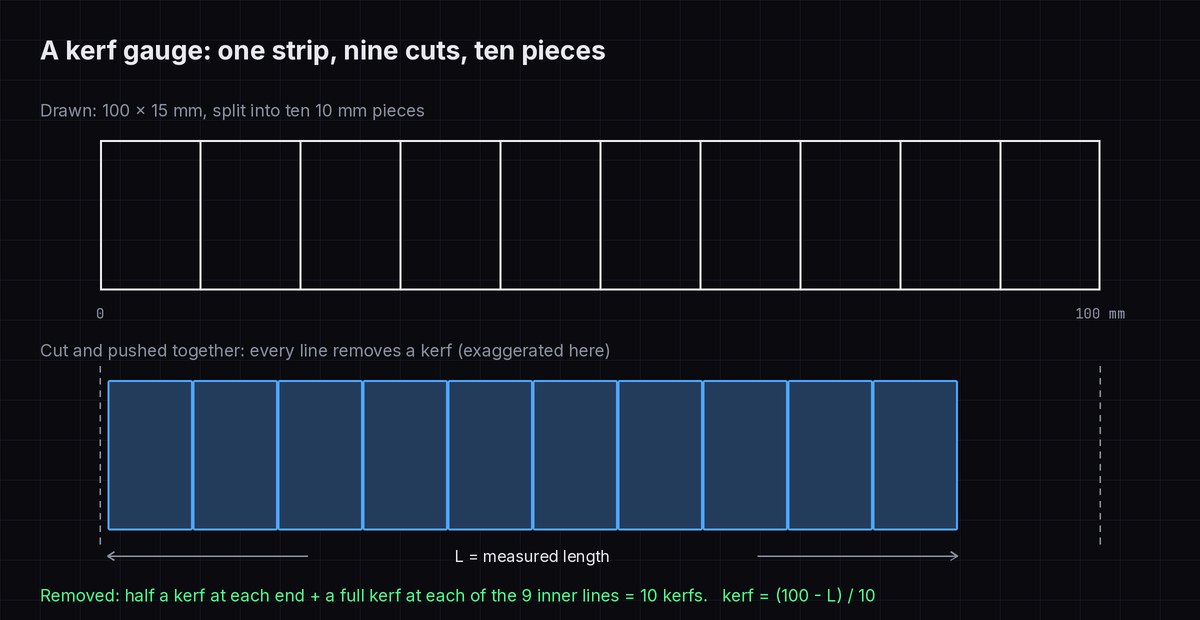
Cutting one square and measuring it gives the kerf to the accuracy of your calipers, which with cheap digital calipers and a charred edge is about ±0.02 to 0.03 mm. That is 20% of a 0.15 mm kerf. A gauge strip divides that error by ten:
Find the setting first. Kerf only means something at the power and speed you will really cut with. If you don't have that yet, run a laser test card in cut mode on the same sheet and take the fastest square that drops out cleanly.
Draw a 100 × 15 mm rectangle with nine vertical lines at 10 mm spacing, and cut it at that setting.
Push the ten pieces together end to end against a straight edge, flat on the bed, and measure the total length L.
Kerf = (100 − L) ÷ 10. If L is 98.40 mm, the kerf is 0.160 mm, and a 0.03 mm reading error now moves the result by only 0.003 mm.
While the calipers are out, measure the sheet thickness in three or four places. "3 mm" plywood is often anywhere from 2.7 to 3.2 mm, and for slot joints the real thickness matters as much as the kerf.
Which way to move each outline
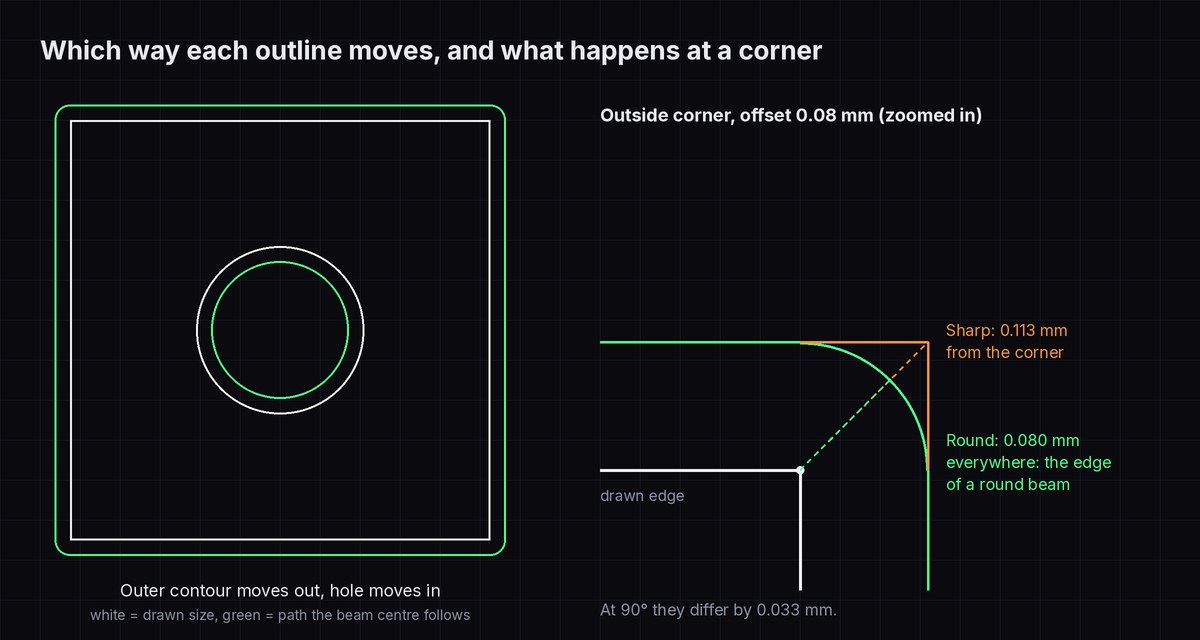
The beam centre follows your line, so half the kerf comes off each side. Compensation moves the line half a kerf towards the waste: outward on the outside contour of a part, inward on a hole. Notches and slots that open from the edge are part of the outside contour, so they get narrower as the contour grows, which is exactly what a finger joint needs. If you cut the hole itself as the part (an inlay pocket, a stencil), the waste is on the other side and the direction flips.
Press-fit arithmetic, worked through
Take 3 mm plywood that measures 3.05 mm, a kerf of 0.16 mm, and a tab that has to sit in a slot. Every cut edge moves 0.08 mm into the part, so:
- A tab (material between two cuts) comes out kerf narrower than drawn.
- A slot or hole (waste between two cuts) comes out kerf wider than drawn.
- Interference = cut tab width − cut slot width. Positive is tight, negative is a gap.
The tab here is the sheet itself standing in a slot, so its width is the 3.05 mm thickness and the kerf doesn't touch it. Only the slot changes:
| Slot drawn | Slot as cut (+0.16) | Against a 3.05 mm sheet | Typical result in plywood |
|---|---|---|---|
| 3.05 mm | 3.21 mm | 0.16 mm gap | Falls out; needs glue |
| 2.90 mm | 3.06 mm | 0.01 mm gap | Slides in, holds lightly |
| 2.85 mm | 3.01 mm | 0.04 mm tight | Firm push fit |
| 2.80 mm | 2.96 mm | 0.09 mm tight | Needs a mallet; may split thin parts |
For a finger joint both sides are cut, so the error doubles. Draw 10 mm fingers and 10 mm gaps without compensation and you get 9.84 mm fingers in 10.16 mm gaps: 0.32 mm of play per finger, and a box that wobbles. Grow the whole outline by half the kerf and both come out at 10.00 mm, line to line. In plywood, line to line usually gives a firm fit because the charred surface and the wood fibres compress a little. Cast acrylic doesn't compress, and a line-to-line acrylic joint can crack at the inside corners when you force it, so for acrylic offset by slightly less than half the kerf (0.055 instead of 0.08 mm gives 9.95 mm fingers in 10.05 mm gaps, 0.1 mm of play) and glue it.
Tables like this get you close. What settles it is a comb: cut a strip with slots at 2.80, 2.85, 2.90, 2.95 and 3.00 mm, engrave the size next to each, and push a scrap of the same sheet into them. It costs a minute of laser time and settles the question for that sheet. The box generator applies the kerf to every panel when you type it in. If you use that, don't compensate the file again elsewhere.
When not to compensate
- Engraving and scoring. A raster fill has no kerf to correct, and offsetting a single score line just makes a parallel copy, so the laser burns two lines.
- Living hinges. The slits are single lines. Offset them and each slit becomes two cuts, which doubles the cut time and weakens the hinge. The living hinge generator output is meant to be cut as drawn.
- Clearance holes. An M3 clearance hole is usually drawn at 3.2 to 3.4 mm. The kerf adds 0.16 mm of extra clearance, which a bolt never notices. Compensate a hole only when it has to grip, such as a press-fit dowel or a hole that a self-tapping screw threads into.
- Very small holes and narrow features. Below about 2 mm, heat builds up and the kerf in a small circle is larger and less predictable than in the gauge strip. Test those sizes directly.
- When something else already does it. Laser software with a per-layer kerf offset, CAM tool-radius compensation, or a cutting service that asks for files "on the line" and compensates itself. Compensating twice gives you the original error in the opposite direction.
How FlatCad's outline offset behaves
The kerf offset guide walks through the clicks. A few details of how it builds the result matter when you rely on it for fits:
- What counts as one outline. FlatCad collects the touching lines and arcs on the same layer as the edge you click. Circles are always offset on their own, as circles with a new radius. A point where three or more ends meet breaks the chain, so a stray line touching an outline stops the whole-outline pick at that point. Shift+click deliberately takes just one segment.
- Sharp corners have a limit. In sharp mode (J toggles) two straight edges are extended to meet, but only while the meeting point is within four times the offset distance of the original corner. That cuts in at corners sharper than about 29°, which get the round treatment instead of a long spike. Where a line meets an arc at an outside corner, the corner is also rounded.
- How big the difference is. At a 90° corner with a 0.08 mm offset, the sharp corner sits 0.113 mm from the drawn corner and the round one 0.080 mm. The 0.033 mm between them only shows on parts that have to seat into a sharp inside corner.
- Features smaller than the offset. An inward offset larger than a fillet radius removes that arc and lets its neighbours meet. If the shape can't survive the offset at all, FlatCad says so in the status line and adds nothing.
- Where the copy goes. The offset is added beside the original, on the original's layer. Press W while offsetting to put it on the current layer instead: keep the drawn outline on Guide, make Cut current, and every compensated copy lands on Cut.
One trap on export: a hidden layer is left out of the SVG, but the DXF keeps it, switched off. If your laser software ignores the on/off flag, the uncompensated originals get cut too. Delete them before exporting a DXF, or check the layer list after import.
Questions
Is the kerf the same in X and Y?
Close, but not always. A slightly oval beam spot, a loose belt or a mirror slightly out of line can make cuts in one direction wider. Cut the gauge strip once horizontally and once vertically; if the two results differ by more than about 0.02 mm, compensate for the larger one and look at the machine's alignment.
Why does my kerf change from one sheet to the next?
Kerf follows everything that changes how much material burns: focus height, power, speed, passes, air assist, and the material itself. Two sheets of the same plywood can differ in glue and density. Re-run the gauge each time the material, lens or settings change.
Should I compensate in the drawing or in the laser software?
One or the other, never both. Laser software that offsets per layer is convenient when you always cut on the same machine. Put it in the drawing when the file goes to a cutting service, to other software, or when you want to see and check the compensated shape.