From a 2D floor plan to a 3D house you can walk through
A floor plan is the cheapest place to make decisions about a house. A 3D model you can walk through is the easiest place to see whether they were good ones. I built two houses this way with FlatCad: the sample plan of a small single-storey house, and a three-storey villa with 1,179 features. This write-up starts with what the plan has to contain for the 3D step to go smoothly and the sizes I used. After that come the changes I made in FlatCad 3D along the way and how the walk-through finds its route.
Two test houses
The sample house is the plan that opens on a first visit to FlatCad. It is about 15 × 10 m on the outside, with eight rooms: two bedrooms, a bath, a hall, a laundry, the kitchen, dining and living. It is drawn on five layers: Walls (30 lines), Doors (7 openings), Windows (9), Furniture (104 lines and 2 circles) and Notes, for annotations. The eight room names are labels on top. It is drawn in millimetres at 1:1.
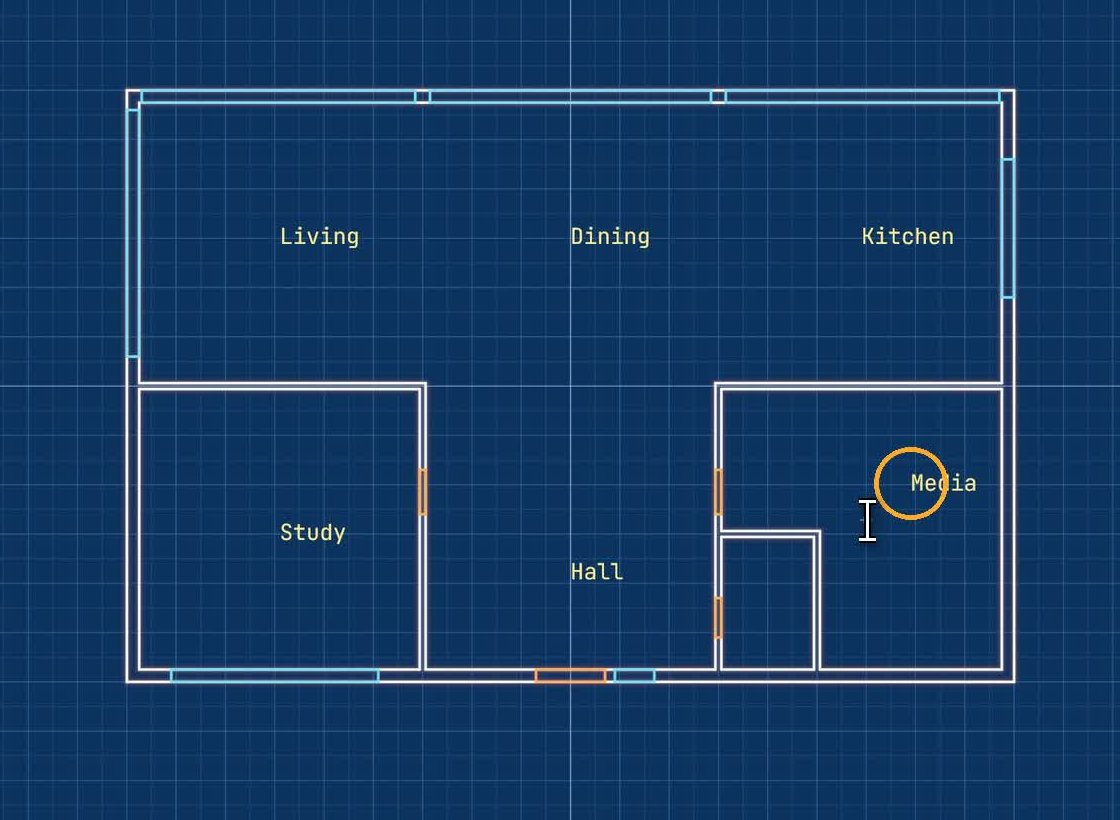
Villa Aurora is my stress test: an 18 × 12 m ground floor with 250 mm outside walls and 120 mm inside walls, around a study, living room, dining room, kitchen, hall, media room and WC. Above it are a first floor and a top floor with a roof terrace, at 3.2 m floor to floor, plus a pool, a garden and furniture. I made the full villa with a script that writes a FlatCad 3D recipe, not by hand and not with an AI, because I wanted a model big enough to find the slow spots. It comes to 1,179 features and about 419,000 triangles.
Draw the plan so 3D can use it
FlatCad 3D does not guess what a line means. It extrudes the closed areas you point at, so the plan should be made of areas, not just lines that happen to look like walls:
- Draw walls as closed outlines, with both faces of the wall drawn, and use snaps so the corners actually join. In the villa, the outside of the outer wall is one 18 × 12 m rectangle. The rooms inside are rectangles, or closed polylines for L-shaped spaces, set back 250 mm from it. The band between them is the wall. A gap of a few millimetres at a corner turns that band into an open shape, and Extrude area will not find it.
- Draw openings as rectangles across the wall on their own layers: Doors and Windows. The villa's front door is 1.4 m wide and its inside doors 0.9 m. The windows run from 0.8 m up to 5.7 m wide.
- Keep furniture outlines on their own layer. In 3D, each one is an area you can extrude to a rough height, or drop a model onto.
- Put names and door swings on Notes. They help you read the plan, and you can switch them off in 3D so they do not get in the way of clicks.
The floor plan guide covers the 2D drawing itself: wall thicknesses, door swings, dimensions and printing to scale.
Building it in 3D
Click 3D at the top of FlatCad and the plan opens in FlatCad 3D, centred and lying flat on the ground, with a small panel listing its layers. For the villa's ground floor, I built the shell in this order:
The floor slab: a Box with its size typed in, the full 18 × 12 m footprint and 300 mm thick.
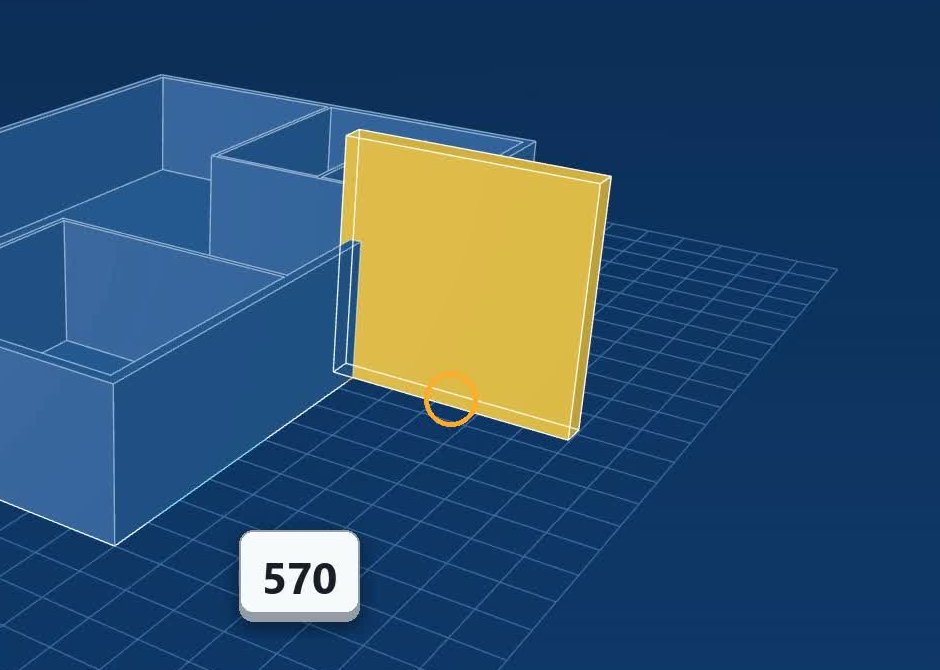
The walls: Extrude area with the height set, then a click inside each wall band of the drawing. The extruded piece stands on whatever is under the click, so walls start on top of the slab, not inside it. The villa walls are 2,900 mm tall, which with the 300 mm slab gives the 3.2 m storey.
The openings: a Box over each door and window, set to Cut. Good starting numbers are the ones FlatCad's old house builder used: doors from the floor to 2.1 m, windows with the sill at 0.9 m and 1.2 m tall. Type the box's size rather than dragging it: a cut box that stops a few millimetres inside the wall leaves a skin you only notice in the render.
The next storey: the slab, walls and openings again, 3.2 m higher. Copying with Move (hold Ctrl) and then editing is quicker than redrawing, if the walls line up from floor to floor.
An earlier version of FlatCad 3D had a one-click house builder. It read the Walls, Doors and Windows layers, then put in walls, floor, openings, hung doors and glazed windows in one go. It was quick, but every result was a pile of decisions you had not made, such as which way each door swung and where each frame sat. When one was wrong, you had to dig through generated features to fix it. I took the button out. Building with Box, Extrude area and Cut takes a few more clicks, but every piece is a plain feature with numbers you can see and change.
When the model gets big
The villa is where FlatCad 3D's speed problems showed up. In the first build, every edit rebuilt the whole model, about 6.3 seconds per change at 1,179 features. I changed how the model is evaluated in three ways. A cut now only touches the pieces whose bounding box it overlaps. Results for features that have not changed are cached. And the separate pieces are only joined at the end, in nearby groups. Together, those brought a typical edit on the villa down to about 1.7 seconds, and undoing to a cached state to about 0.3 seconds.
If your own house feels slow, hide the storeys you are not working on: hidden features are skipped when the model is rebuilt.
Rendering it
The Render button gives a lit, shadowed view with Day, Evening and Studio light and a slider that turns the sun round. Save image goes up to 4K, and Save video makes a turntable of 6, 10 or 20 seconds. For a house recognised as one (see the note below), Render also offers a wall cut at 0.9, 1.2, 1.5 or 2 m, which turns the model into a dollhouse view. A Floor picker chooses which storey the cut looks into.
How the walk-through finds its way
The Fly through video walks through the house at eye height, room to room. It does not use the plan at all. It slices the finished 3D model:
- A slice just above the floor gives the area you can stand on. Slices at knee height (0.4 m) and chest height (1.1 m) give what blocks you: walls, furniture, a kitchen island.
- On a 50 mm grid over that, it measures how far each free cell is from anything blocked. Wide-open patches at least 0.6 m from everything, and bigger than 0.4 m², are rooms. The narrow necks between them are the doorways.
- It starts in the biggest room and goes to the nearest room not yet visited, again and again, along the middle of the free space. The path is smoothed so it does not zigzag.
- The camera speeds up in tight spaces (up to about 1.6 m/s) and slows to about 0.8 m/s in open rooms, so the video lingers where there is something to look at. It looks a little ahead along the path, and turns more freely in the last couple of metres before the end.
It has limits I know about. Narrow corridors bring the camera close to the walls for a few frames. A house without a roof shows sky above the top floor. And glass counts as a wall, so a walk does not go through a closed glazed door. On the villa's top floor, the automatic walk stayed out on the terrace for that reason. For the villa video, I wrote the route by hand instead: about 40 waypoints at 1.6 m eye height, in through the front door, round every ground-floor room, up both stairs, round the bedrooms, with a pause of 1 to 2.5 seconds in each room.
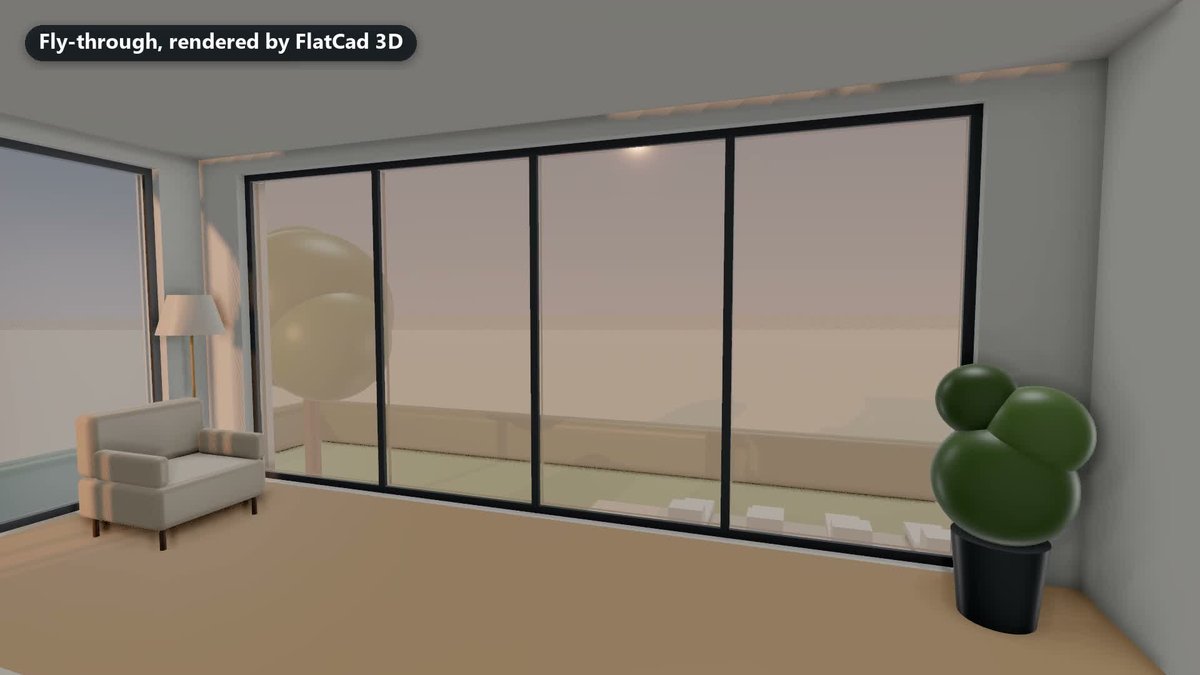
At the time of writing, Fly through and the wall cut appear for models that carry FlatCad's house tags on their walls and floors, as the villa recipe does. Walls you extrude yourself with Extrude area do not carry them, so for a house built by hand, Render offers pictures and the turntable video.
Printing a model of it
Export → STL or 3MF has a scale menu from 1:1 to 1:200, and it switches to 1:100 by itself for anything bigger than 2 m. At 1:100 the sample house comes out about 150 × 100 × 27 mm. Check two things before you print. A 100 mm internal wall becomes 1 mm at 1:100, thinner than the 1.2 mm (three 0.4 mm lines) that a 0.4 mm nozzle prints as a solid, dependable wall, so thicken interior walls to 120 mm or more, or print at 1:50. And furniture printed in place with the walls is fragile at that scale. Export the walls alone, and keep furniture as a separate print or leave it out.
The Blender route
If you would rather finish the house in Blender, the plan works there too: export one SVG per layer from FlatCad, then import, fill, extrude and cut the openings with Boolean modifiers. The tutorial goes through it with the same sample house:
For the short version of the FlatCad 3D steps, with the buttons named, see turn a 2D floor plan into a 3D house.
Open FlatCad 3D, free, no signup
Questions
What wall thickness should I draw?
Draw what the building has. The villa uses 250 mm for outside walls and 120 mm for inside walls, which is a reasonable start for a masonry house. Timber-framed internal walls are often closer to 90 to 100 mm with lining. The 3D model only extrudes what you draw, so the thickness in the plan is the thickness you get.
How big is a 1:100 print of a house?
One hundredth of its size: the 15 × 10 m sample house with 2.7 m walls comes out about 150 × 100 × 27 mm, a comfortable print on most beds. Walls under about 120 mm thick become thinner than 1.2 mm at 1:100, so thicken them, or print at 1:50.