Why DXF and SVG files import at the wrong size, and how to tell which mistake it was
A vector file is a list of numbers. Whether 100 means 100 mm, 100 inches or 100 screen pixels is either written somewhere in the file or left for the reading program to guess. When the two programs disagree, the part arrives off by a factor that is never random: 25.4, 3.78, 1.333, 0.75. Each factor points to one particular mismatch, so if you know the factor you know the cause and the fix.
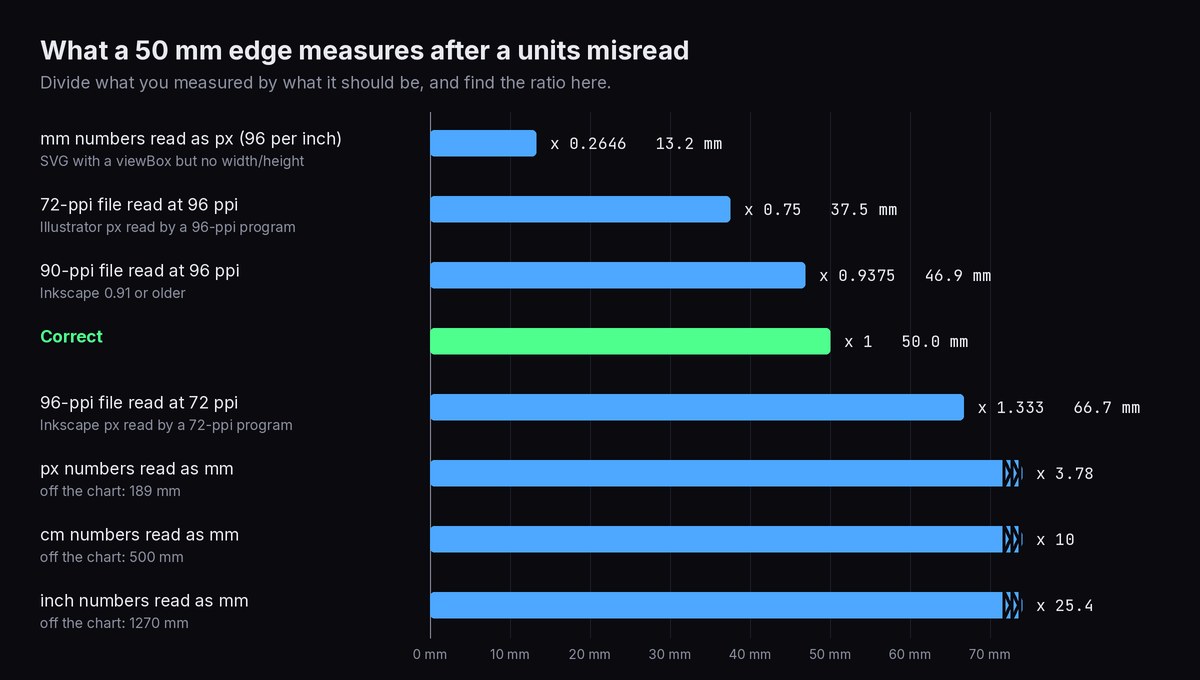
Diagnose it from one dimension you know
Don't start by guessing which program is at fault. Measure first:
Pick a feature whose real size you know for certain: the overall width from the design brief, a hole that should fit an M4 screw, the spacing of two mounting holes. Avoid curved outlines; a straight edge or a centre-to-centre distance is easiest to read.
Measure it in the program where it looks wrong. Use the program's own measure tool or size readout rather than the ruler on screen.
Divide measured by expected and look the ratio up in the table below. Then scale by the number in the last column.
Worked example 1. A bracket's two mounting holes should be 60 mm apart. After import they are 2.362 mm apart. 2.362 ÷ 60 = 0.03937, which is 1 ÷ 25.4. The file's numbers are inches (60 mm is 2.362 in) and the reader took them as millimetres. Scale by 25.4 and the spacing is 59.99 mm, the rest being rounding in the file.
Worked example 2. A sign blank should be 100 mm wide and arrives at 26.46 mm. 26.46 ÷ 100 = 0.2646, which is 25.4 ÷ 96. Somebody wrote the SVG's numbers in millimetres but never said so, and the reader treated them as CSS pixels at 96 per inch. Scale by 3.7795 (96 ÷ 25.4).
| Measured ÷ expected | What happened | Where it usually comes from | Scale by |
|---|---|---|---|
| 25.4 | Millimetre numbers read as inches | Metric DXF without a units header, opened in inch-based CAM | 1/25.4 |
| 0.03937 | Inch numbers read as millimetres | DXF from US CAD or an inch template, no header or header ignored | 25.4 |
| 10 or 0.1 | Centimetres and millimetres swapped | A drawing set to cm, exported without units | 0.1 or 10 |
| 1000 or 0.001 | Metres and millimetres swapped | Architectural DXF drawn in metres | 0.001 or 1000 |
| 3.7795 | Pixel numbers read as millimetres | SVG in px, read by a program that assumes mm | 0.2646 |
| 0.2646 | Millimetre numbers read as pixels | SVG with a viewBox in mm but no width/height | 96/25.4 |
| 1.3333 | 96-per-inch pixels read at 72 per inch | Inkscape or browser SVG opened by a 72-ppi reader | 0.75 |
| 0.75 | 72-per-inch pixels read at 96 per inch | Illustrator SVG opened by a 96-ppi reader | 96/72 |
| 0.9375 | 90-per-inch pixels read at 96 | SVG saved by Inkscape 0.91 or older | 96/90 |
| 0.3528 | Millimetre numbers read as points | A file that went through a PDF step without unit conversion | 72/25.4 |
If your ratio is something like 1.02 or 0.97, stop looking at units. Common causes are a print or PDF made with "fit to page", a size readout that includes half the stroke width on each side (a 100 mm square with a 1 mm stroke reads 101 mm in programs that measure the visible edge), or kerf on a part you measured after cutting.
DXF: the numbers have no units, the header is optional
A DXF stores coordinates as bare numbers. The unit lives in a single header variable, $INSUNITS, as a code:
$INSUNITS | 0 | 1 | 2 | 4 | 5 | 6 |
|---|---|---|---|---|---|---|
| Meaning | Unitless | Inches | Feet | Millimetres | Centimetres | Metres |
Three things make this unreliable in practice. Many small exporters (online generators, older CAM, scripts) don't write the header at all. Some write 0, which says outright that there is no unit. And plenty of readers ignore the header and either ask you or apply their own default, which tends to be millimetres in metric software and inches in some US-centric CAM. A second header variable, $MEASUREMENT, says whether the drawing is metric or imperial, but it governs hatch and linetype defaults, not the scale of the geometry, so don't rely on it.
Fusion's Insert DXF dialog, for example, has its own unit dropdown, and what you choose there is how the numbers get read. That is the usual source of the 25.4 factor in Fusion. Laser and CAM programs vary by version, so if a file is wrong by the same factor every time, look in the import settings before rescaling each job by hand.
What FlatCad writes and reads
- Export: the DXF header always carries
$INSUNITStaken from the Units menu: 4 for mm, 5 for cm, 6 for m, 1 for in, 2 for ft, and 0 if Units is set to none.$MEASUREMENTis set to imperial for inches and feet and metric otherwise. - Import into an empty drawing: FlatCad switches its Units menu to the file's unit and keeps the numbers as they are. An inch DXF opens as an inch drawing, with a 2.362 line reading 2.362 in.
- Import into a drawing that already has something in it: the geometry is converted into your current unit, and the status line says so, for example
converted from in to mm. - No header, or
0: the numbers are taken as your current unit unchanged. This is the case where you need the measure-and-divide check above.
SVG: real units, pixels, and the 96 versus 72 split
An SVG's size comes from three attributes on the root element. width and height give the physical size and may carry a unit (mm, cm, in, pt, pc, px). The viewBox gives the coordinate range the drawing uses inside that size. Together they set what one coordinate unit is worth:
| Root element | 1 user unit is | A 100-unit line is |
|---|---|---|
width="200mm" viewBox="0 0 200 100" | 1 mm | 100 mm |
width="755.9" viewBox="0 0 755.9 377.95" (no unit = px) | 1/96 in | 26.46 mm |
width="8in" viewBox="0 0 800 400" | 0.01 in | 25.4 mm |
viewBox="0 0 200 100" with no width or height | 1 px (1/96 in) | 26.46 mm |
The CSS standard fixes a pixel at 1/96 inch, and current browsers and Inkscape (0.92 and later) follow it. Older Inkscape used 90. Illustrator treats one pixel as one point, 1/72 inch, so an Illustrator SVG in pixel units is read at 75% of its size by any program that assumes 96, and a 96-ppi file opened by a program that assumes 72 grows by 1.333. Affinity Designer writes pixels at the document's DPI setting, so the same artwork exported from a 72-DPI and a 300-DPI document gives different numbers. Check Document Setup before exporting, or set the document to millimetres.
The cure is the same in every program: save SVGs with a physical unit in width and height. In Inkscape that means Document Properties with the display units and the scale both in millimetres (1 user unit per mm). From Illustrator, export a PDF or DXF instead of an SVG, or open the .ai file directly, which sidesteps pixels altogether (see AI to DXF). Laser software such as the Glowforge app and LightBurn generally honours real units when the file has them. Pixel-only files are where the surprises come from, and how each program reads those depends on its import settings and version.
What FlatCad does with an SVG
On import FlatCad reads the width, height and viewBox together, honours preserveAspectRatio, and converts mm, cm, in, pt, pc, Q and px. Pixels and unitless numbers count as 1/96 in. A file with a viewBox but no width or height is therefore read as pixels, which is the 0.2646 row in the table. The status line reports the overall size straight away, so you can compare it with what you expect before doing anything else.
On export the SVG is always in millimetres, whatever the Units menu says. A drawing made in inches is multiplied by 25.4 on the way out, and the file says so in a comment on its second line (1 user unit = 1 mm (drawing units in)). The DXF, by contrast, stays in the drawing's own unit and declares it in the header. If you send the same inch drawing as both formats, the SVG holds 50.8 where the DXF holds 2. Both are correct, as long as the reader honours the units.
Fixing a file that is already wrong
In FlatCad the Scale tool (K) takes the factor straight from the table: select all with Ctrl+A, start Scale, pick any base point, then type the number from the last column. Fractions work as typed, so 96/72 or 1/25.4 needs no calculator and loses no precision. Then measure your known dimension again. Don't fix a units error by changing the Units menu: that relabels the numbers without resizing anything (the Help page covers this). Scale first, then set Units to what the numbers now mean.
One last check before you cut: if a printed template is involved, print at 100% and measure the 50 mm check bar that FlatCad's true-scale PDF puts on every page. Printer drivers that "fit to page" introduce the small odd ratios that look like a units problem but aren't one.
Going on to cut it? The format itself matters too: what survives the trip through SVG, DXF and PDF is in SVG vs DXF vs PDF for laser and CNC. For the conversion itself, see SVG to DXF or PDF to DXF. 3D files have their own version of this problem: STL vs 3MF.
Questions
My DXF is 25.4 times too small in Fusion. What happened?
The numbers in the file are inches and they were read as millimetres. Fusion's Insert DXF dialog has its own unit setting, and the unit you choose there decides how the numbers are read. Pick inches there, or scale the sketch by 25.4.
Can a PDF arrive at the wrong size too?
Less often. PDF geometry is always in points (1/72 inch), so a reader has nothing to guess. When a PDF is off, it was usually exported or printed with fit to page, or at a drawing scale such as 1:2. Measure a known dimension and scale by the ratio.
The size is off by 2 or 3 percent, not a round factor. Is that units?
No. Units mistakes give fixed ratios like 25.4, 3.78, 1.333 or 0.75. A small odd error usually comes from a print scaled to fit the page, a size readout that includes the stroke width, or kerf on a cut part.